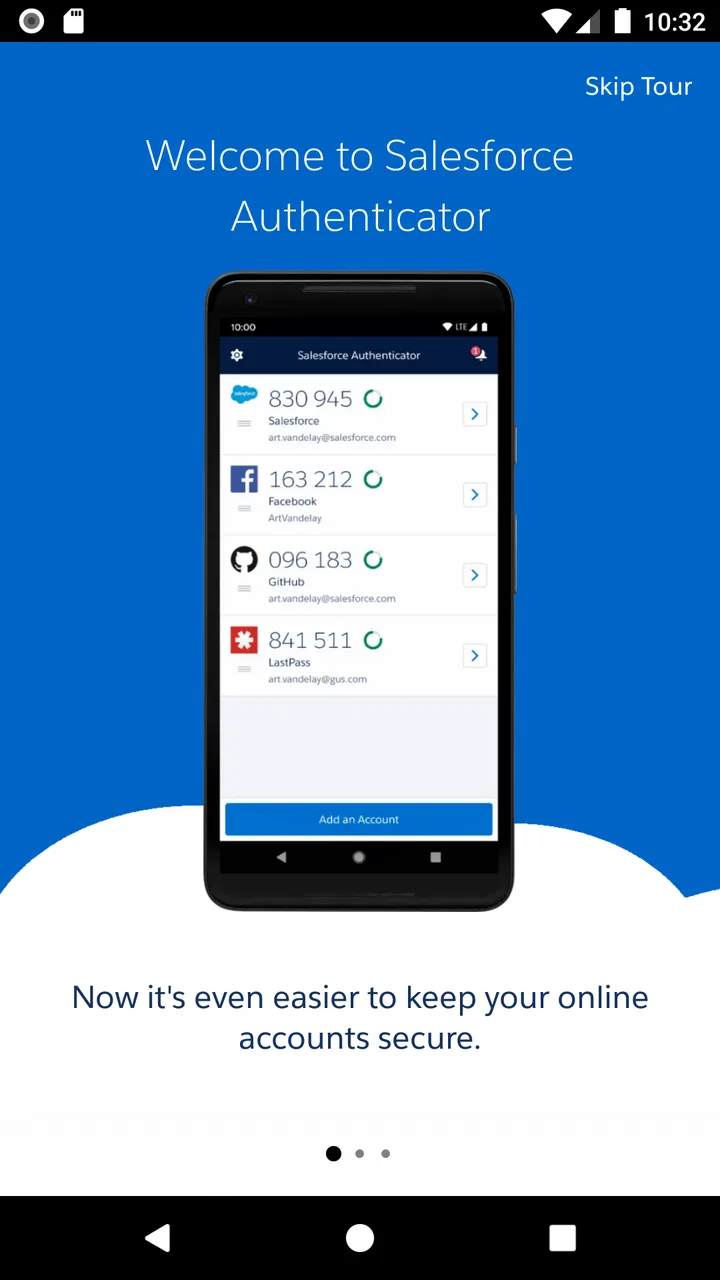
Salesforce Authenticator
- 4.4
- Rating
- 5.00M
- Installs
- Free
- Price

 Analysis by App-foxy
I use Salesforce Authenticator as a second layer between my account and anyone trying to sign in with a stolen password. It is a focused business app rather than a general password manager or a social login tool: its job is to support two-step verification for compatible Salesforce sign-ins and other services configured to use it. That narrow purpose is also its main appeal. I am not opening it to organize credentials, browse a dashboard, or manage a whole digital identity. I am opening it when a login needs an extra approval.
That makes the app especially relevant if you work with Salesforce or if your organization has chosen it as part of its sign-in process. In my experience, the best security tools are the ones that fit naturally into an existing routine, and this one aims to make the second step visible on the phone I already carry. It is developed by Salesforce.com, inc., belongs to the business category, and is available free of charge. The important question is therefore not whether it is an expensive purchase, but whether its particular verification workflow is useful for the accounts you actually need to protect.
How Salesforce Authenticator fits into everyday sign-in security
Two-step verification changes the meaning of a password. Instead of treating the password as the only proof of identity, the service asks for another confirmation from a registered device. With Salesforce Authenticator, that confirmation happens through the app rather than through a separate hardware token. I see this as a practical middle ground: stronger than relying on a password alone, but less cumbersome than carrying a dedicated security key for every login.
You May Also Like

 Blood Strike: 2.5 Anniversary
Blood Strike’s Loadouts Turn Every Drop Into a Tactical Gamble
A close look at Blood Strike’s custom loadouts: how fast access to signature weapons reshapes its battle royale rhythm, rewards preparation, and narrows the gap between fights.

 Pandora - Music & Podcasts
Pandora’s Music Is Easy to Start, but Harder to Recover
Pandora’s strength is its low-effort path from a seed to a station. Its weak spot is how much confidence it asks you to place in connection, setup, and quiet recovery.

 8 Ball Pool
 Is Built on Rivalries, Rematches, and Routine
A close look at the rivalries, rematches, shared routines, and unanswered safety questions that turn a quick pool match into a persistent mobile community.

 Samsung Music
’s Quiet Strength Is Playing What You Already Own
Its reach comes less from spectacle than from dependable access to a personal library. That simplicity is both the app’s strongest retention engine and its ceiling.

 AccuWeather: Weather Radar
AccuWeather Review: A Quick, Clear Forecast for Everyday Decisions
For everyday plans, the best forecast is the one you can understand quickly. AccuWeather makes rain timing, radar, and local conditions easy to act on, with a few trade-offs.

 Hill Climb Racing
Why Hill Climb Racing Still Turns Crashes Into One More Run
A tiny car, a bumpy hill and one more upgrade: Hill Climb Racing keeps resurfacing because its simple chaos makes every near-miss feel personal.
More From Our News Desk



The first important detail is that this is not a universal replacement for every authentication method. Its usefulness depends on whether the account or organization supports Salesforce Authenticator as an approved verification option. A person downloading it for a random website may find that the app does not automatically solve anything. I would first check the security settings of the service I need to access, or ask the administrator responsible for the company account, before treating the installation as a complete security plan.
When the app is part of the intended sign-in setup, the phone becomes the place where I review an authentication request. That creates a useful pause between entering a password and gaining access. I can consider whether I really initiated the login instead of approving everything automatically. This small habit matters in a busy workplace, where a suspicious prompt can otherwise be mistaken for a routine sign-in.
The app is rated for Everyone, which fits its straightforward role. It is not entertainment software and does not need to teach complicated security theory to be useful. The interface is meant for a quick decision at a moment when I am trying to get into an account. That simplicity is helpful, although people who want detailed control over many different authentication methods may eventually find the focused design limiting.
The free price changes the value calculation
Salesforce Authenticator is free to download and use, so there is no purchase decision in the usual sense. I do not have to compare subscription tiers, unlock a premium approval mode, or decide whether a paid plan is justified. For someone whose employer or service already supports it, free access makes the trial decision easy: install it, complete the required setup, and see whether the workflow is comfortable.
Free access does not mean it is valuable to everyone. The value comes from reducing the chance that a compromised password is enough to enter a protected account. If I never use a compatible Salesforce sign-in, the app has little practical purpose on my phone. Conversely, if my work depends on such an account, the absence of an app fee makes the extra verification layer easier to adopt across a team.
I would separate the app’s cost from any broader cost imposed by an organization. A company may have its own account rules, device requirements, or support process, but those are not the same as paying for this app. From a personal buying perspective, the answer is clear: there is no app purchase to budget for. The real investment is the time needed to enroll the device and learn the approval habit.
That distinction is worth keeping in mind when comparing it with a paid password manager or a hardware security key. Those alternatives can provide different capabilities and may involve their own costs. Salesforce Authenticator offers a free, targeted verification tool, not an all-purpose security package. I consider that a strong value when the target account is compatible and a poor value when it is not.
What the app delivers beyond a password
The most useful benefit is the separation between knowing a password and possessing the registered phone. If someone obtains my password, the sign-in still has another hurdle. That does not make an account invulnerable, but it changes the attacker’s task and gives me a chance to notice an approval request I did not initiate.
I also appreciate the psychological effect of a dedicated approval step. A text message code can be copied quickly, mistyped, or delayed. An authenticator app keeps the action inside a purpose-built security workflow. I am less likely to leave a code visible in a message thread, and I can treat an unexpected prompt as a warning rather than as an ordinary notification.
There is a practical advantage for workplaces as well. An administrator can choose a consistent authentication approach for people using the same Salesforce environment, while employees use their own phones for the second step. That can be easier to explain than a mixture of personal preferences, especially when some staff members are not comfortable with technical security settings.
One non-obvious strength is that the app can encourage better decision-making at the exact point where it matters. I recommend telling users not to approve a request merely because it appears. They should pause, check whether they just attempted to sign in, and reject anything unexpected. The app is most effective when it supports that judgment instead of turning approval into muscle memory.
Another useful workflow is separating enrollment from everyday use. I would set it up while I have access to the account, a stable internet connection, and any instructions from the organization. Doing this just before an urgent meeting is asking for trouble. Once the device is enrolled, the routine is much less stressful, but the initial setup deserves deliberate attention.
Where the experience can become inconvenient
The biggest trade-off is dependence on the phone. If the device is lost, replaced, damaged, unavailable, or out of battery, the second step may become a barrier to work. That is not a flaw unique to this app, but it is a real operational issue. Before relying on it, I would learn the organization’s recovery procedure and keep the relevant support information accessible somewhere other than the protected account itself.
Phone changes deserve special care. Moving to a new device is not something I would treat like installing an ordinary app. The authentication relationship may need to be transferred or re-established through the account administrator. I would not wipe the old phone until I knew the new one worked, because a rushed change can turn a simple upgrade into a sign-in problem.
There is also a human-factor weakness: approval fatigue. If a person receives repeated prompts and accepts them without checking, the security benefit is reduced. The app can present the request, but it cannot make the final decision intelligently on the user’s behalf. Teams should explain that an unexpected request is a reason to stop and report the event, not a minor annoyance to dismiss.
Compared with a password manager, this app is much narrower. A password manager can help generate, store, and fill unique passwords across many services; Salesforce Authenticator is not a substitute for those tasks. Compared with SMS verification, an authenticator app can feel more contained and less dependent on message delivery, but it still depends on the enrolled device and the service’s supported setup. Compared with a hardware security key, it avoids carrying another object but puts more responsibility on the phone.
Those comparisons do not make one option universally better. I would prefer a password manager for managing a large collection of credentials, a hardware key for a high-risk account where physical possession is the priority, and Salesforce Authenticator when the Salesforce sign-in environment already expects it. Choosing the right tool means matching the method to the account instead of collecting security apps without a plan.
A realistic workday example
Imagine I am working from a café and need to open a Salesforce account before a customer call. I enter my password, then receive the second-step request on my phone. I recognize that I started the login, review the prompt, and approve it. The process adds a moment to the sign-in, but it also means that a password exposed elsewhere is not automatically enough to enter the account.
Now change the situation: I am not trying to sign in, but an approval request appears while I am answering email. I would reject it and contact the appropriate administrator or security contact. That is where the app becomes more than a button I tap. It gives me a clear event to question. The value is not only successful access; it is also the opportunity to notice access attempts that do not match my actions.
A third situation shows the trade-off. I arrive at work with a new phone after the old one stopped working. The account is still protected, but my normal approval device is gone. I cannot assume that reinstalling the app alone will restore access. I need the organization’s recovery path, and that path should be understood before an emergency. For business users, this preparation is as important as the initial download.
Who is likely to benefit most
I would recommend it first to Salesforce users whose employer requires or supports this authentication method. It is also a sensible choice for small teams that want a consistent second-step experience without asking every employee to purchase a separate security product. The free price removes one common adoption obstacle, while the focused design keeps the daily task understandable.
It may also suit people who dislike receiving security codes by text and prefer approving a request in a dedicated app. The experience is easier to explain when the instruction is simply to check the phone and confirm a sign-in they initiated. For a person who already uses Salesforce regularly, that focused role can be more useful than installing a broad security suite with features they will never touch.
I would be more cautious about recommending it to someone looking for one app to protect every online account. That person needs to investigate a password manager, a broadly supported authenticator, or hardware-based protection depending on the accounts involved. Installing this app without checking compatibility creates the appearance of preparation without necessarily improving access security.
It is also not the best fit for a user who cannot reliably keep a phone available during work. In that case, an organization-approved alternative may be more practical. Accessibility, travel, device restrictions, and recovery support should influence the decision. Security is only useful when the legitimate user can still reach the account safely.
Current details and long-term usefulness
The app has been available since November 4, 2013, and its current version is 4.8.0. It supports devices running iOS 9 or later. Those details make it worth checking compatibility before installation, particularly on an older device that is kept for work purposes. I would also keep the app maintained through the normal app-store update process, because authentication software should not be treated as something to install once and forget.
Its presence on the stores is substantial, with over one million installs, a 4.4 average rating, around twenty-six thousand ratings, and roughly one thousand three hundred reviews. Those figures suggest that it is a familiar tool rather than an obscure experiment, but popularity does not remove the need to confirm that it matches the sign-in policy for my specific account.
In daily use, I would judge it by three questions: does my service support it, can I approve requests without confusion, and do I understand how to recover access if the phone disappears? If the answer to all three is yes, the app’s narrow design works in its favor. If the first answer is no, none of the other qualities matter.
My recommendation before installing
Before setting it up, I would ask the account administrator or consult the organization’s sign-in instructions. I would prepare the phone, make sure I can receive the required setup prompts, and avoid beginning enrollment immediately before an important task. I would also record the official recovery route in a safe place, not inside the account that might become inaccessible.
After enrollment, I would practice the difference between a request I initiated and one I did not. That sounds obvious, but it is one of the most valuable habits connected with this kind of tool. A fast approval is convenient; a thoughtful approval is safer. If the app becomes a reflexive tap, I am not getting its full benefit.
I would not use it as a reason to reuse weak passwords. The second step helps, but a strong, unique password remains important. Likewise, I would not assume that protecting one Salesforce login protects unrelated services. The app should be part of a broader account-security routine, with each service using a method it actually supports.
After reviewing the workflow, I see Salesforce Authenticator as a good recommendation for a specific audience rather than a universal download. It is free, focused, and useful when Salesforce-based two-step verification is part of the account setup. Its strongest feature is the extra moment of control before access is granted, while its main weakness is the dependence on the enrolled phone and an organization’s recovery process.
My verdict is to install it when your Salesforce sign-in instructions call for it, but skip it as a general-purpose security app. I would recommend it to a colleague who needs a straightforward second step and can keep the phone available. I would steer someone seeking password storage across many websites toward a different category of tool, and someone needing the most device-independent protection toward an organization-approved hardware option. For the right account, though, the free access and focused workflow make it a practical layer of protection rather than unnecessary clutter.
FAQs for Salesforce Authenticator
01What is Salesforce Authenticator and how does it work?
Salesforce Authenticator is a mobile app designed to enhance the security of your Salesforce account by offering two-factor authentication (2FA). Once installed, it pairs with your Salesforce account to verify your identity using push notifications. It allows you to approve or deny login attempts directly from your smartphone, adding an extra layer of protection.
02Is Salesforce Authenticator compatible with all mobile devices?
Salesforce Authenticator is available for both Android and iOS devices. It supports most modern smartphones running on these operating systems. However, it's essential to check the specific OS version requirements on the app store to ensure compatibility with your device before downloading.
03How secure is Salesforce Authenticator?
Salesforce Authenticator provides a highly secure method of protecting your Salesforce account through two-factor authentication. It uses encrypted communications and offers the ability to set up additional security measures, such as location-based approvals, ensuring that only you can access your account from trusted locations.
04Can I use Salesforce Authenticator with multiple Salesforce accounts?
Yes, Salesforce Authenticator allows you to manage multiple accounts. You can pair different Salesforce accounts with the app, making it easy to switch between them. Each account will have its own authentication settings, ensuring secure, seamless access across your Salesforce profiles.
05What should I do if I lose my phone with Salesforce Authenticator installed?
If you lose your phone with Salesforce Authenticator installed, it’s crucial to act quickly. Access your Salesforce account on another device and update your security settings. Contact your Salesforce admin for assistance to temporarily disable 2FA or re-establish access with a new device. Always ensure you have recovery options set up in advance.
Pros
- Easy setup with intuitive interface.
- Supports multiple accounts efficiently.
- Offers secure two-factor authentication.
- Integrates seamlessly with Salesforce apps.
- Customizable notifications for security alerts.
Cons
- Limited offline functionality.
- No backup option for accounts.
- Can drain battery with frequent use.
- Requires smartphone for access.
- Occasional sync issues with accounts.

Salesforce Authenticator
Gallery